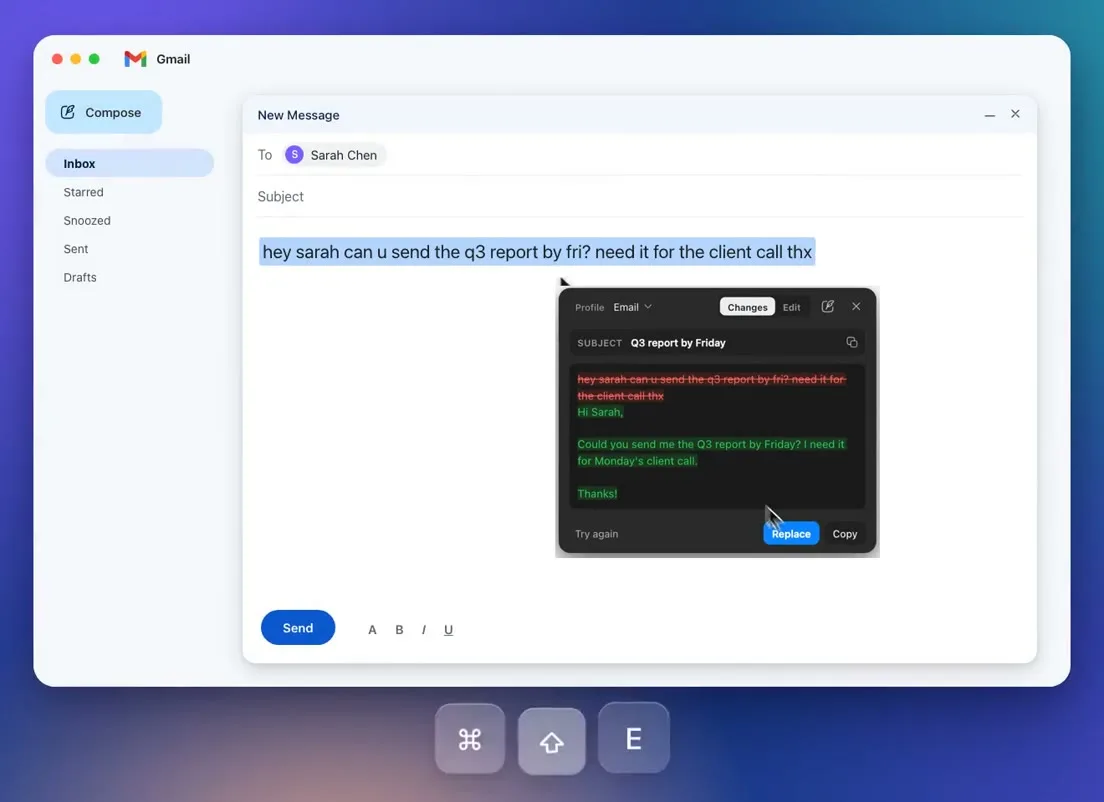

Answer in 2 sentences
PromptDC lets you type a one-off Action on the desktop app or Chrome extension when a fixed preset does not express the rewrite you need. Save a profile for repeated work, use per-app or per-site rules to select that profile automatically, and use an Action for a specific instruction that should apply only once.
What is a custom Action in an AI rewriter?
A custom Action is an instruction you type at the moment of use for the selected text in front of you. It is not a saved profile, and it does not become a new preset after the rewrite. This makes it useful when your request is too specific, temporary, or unusual for the profiles you use every day.
An Action can contain up to 19,000 characters. That is enough room for a detailed brief, a terminology list, formatting requirements, examples, or constraints that would be awkward to squeeze into a short preset. The feature is available in both the desktop app and the Chrome extension, so a one-off instruction is not limited to a browser workflow.
The Action preserves the original language of the selected text unless your instruction says otherwise. If you select a Greek paragraph and ask to make it more concise, the result remains in Greek. If you want English instead, state that explicitly in the instruction.
What should you type into a one-off AI Action?
Type a concrete instruction that describes the required change and the facts that must stay fixed. An Action works best when you name the audience, tone, length, structure, or exclusions that matter for this particular rewrite.
Useful instructions include:
- Rewrite this as a firm but respectful reply. Keep every date, price, and commitment unchanged.
- Turn these rough meeting notes into a five-item client update. Put decisions first and open questions last.
- Shorten this to 120 words for a product update. Keep the three feature names exactly as written.
- Explain this policy for a new employee with no legal background. Do not add examples that are not in the source.
- Translate this into English, use plain business language, and leave product names in their original form.
- Rewrite this announcement for parents. Sound calm, avoid jargon, and end with the action required by Friday.
These requests are specific enough to evaluate after generation. You can compare the output with the instruction, check the fixed details, and reject any change that was not requested. A vague command such as “improve this” gives you much less control.
When is a saved profile better than an Action?
A saved profile is better for anything you do more than twice. Repeated work benefits from a stable instruction, a recognizable name, and its own keyboard shortcut, while a one-off Action would make you type the same request again.
For example, save a profile if every customer update must begin with the outcome, retain ticket numbers, and end with the next owner. Save another if you regularly turn research notes into short executive summaries. The profile guide explains how built-in and custom profiles fit repeated writing jobs.
The practical test is simple. If you would copy the Action instruction into a notes app so you can reuse it, it probably belongs in a profile. If the requirement exists only because of one recipient, one document, or one unusual constraint, keep it as an Action.
How do per-app profile defaults work on desktop?
A per-app rule automatically selects a saved profile when you work in a named desktop application. You might choose Reply for Slack, Email for Mail, Professional for Word, and Summarize for a document reader. The app names are examples because the desktop tool works in any app where you can select text.
The accuracy boundary matters: a per-app rule selects a profile only. Format, mode, language, and Always Include remain global settings. Moving from Mail to Slack can switch the chosen profile, but it does not silently give Slack a separate language, output format, mode, or Always Include value.
That distinction keeps the automation predictable. The app rule answers “which saved instruction should be ready here?” Global settings continue to answer “how should rewriting behave across my current setup?” You can still choose another profile or type an Action when the current selection needs different treatment.
How do per-site rules work in Chrome?
A per-site rule chooses a profile automatically for a website in Chrome. You can prepare a concise profile for a support dashboard, a professional profile for a webmail account, and a social profile for a publishing site, then let the extension surface the relevant choice.
The per-site rules documentation covers the browser setup. In an editable field, the Chrome extension rewrites the selected text in place. For a read-only selection, it copies the result to the clipboard so you can decide where it belongs.
Per-site rules solve a different problem from Actions. The rule removes a repeated profile choice tied to a site. An Action supplies a temporary instruction tied to one selection. You can use the selected profile most of the time and switch to an Action when the current text needs an exception.
How do Actions and profile defaults combine in a normal day?
Profile defaults handle the predictable parts of your day, while Actions handle exceptions. In the morning, Mail can open with your Email profile and Slack with Reply. In Chrome, a customer portal can select your support profile while a publishing tool selects Social.
Then an unusual request arrives. A customer needs a 90-word explanation that preserves contract terminology and ends with two questions. Instead of changing the saved Email profile for everyone, select the draft and type that requirement as an Action. The next ordinary email still uses the original profile.
Later, you notice that you have typed the same Action for a third time. That is the point to save it as a custom profile and assign a shortcut. This progression lets temporary instructions prove their value before they become part of your permanent setup.
Which surface should you use for these features?
Use the desktop app when your selected text is in native apps or browsers beyond Chrome. It works across apps like Slack, Mail, Notion, and Word, plus any other app where text can be selected. The desktop writing assistant guide shows how that selection-based workflow fits macOS and Windows.
Use the Chrome extension when most of your work happens in Chrome fields and you do not want to grant macOS Accessibility permission. One account covers both surfaces, so many people benefit from installing both instead of forcing every task through one interface. You can start from the download page.
Profiles remain the shared foundation. The article on AI writing profiles per website goes deeper into matching recurring styles to browser destinations. For a direct surface comparison, read desktop app or Chrome extension.
For an everyday example outside the browser, see how to rewrite text in Slack, Mail, and Notion.
Bottom line
Use an Action for one selected passage that needs its own instruction, with up to 19,000 characters available. Use a saved profile for anything you do more than twice, especially when a dedicated keyboard shortcut would remove repeated setup. Per-app and per-site rules can select that saved profile automatically, but per-app rules do not change global format, mode, language, or Always Include settings. Together, these features keep routine work fast without forcing unusual requests into a fixed preset.
FAQ
Are custom Actions saved for later?
No. An Action applies to the current rewrite and is not saved as a profile. Create a custom profile if you want to reuse the instruction.
How long can a custom Action be?
The instruction can contain up to 19,000 characters. Use the space for relevant constraints and examples, but keep the request organized enough to review against the result.
Does an Action translate the selected text automatically?
No. It preserves the original language unless the instruction requests another language. State the target language clearly when translation is part of the job.
Can I use Actions in both the desktop app and Chrome?
Yes. Actions are available on the desktop app and the Chrome extension. Choose the surface based on where the text is selected.
Does a per-app rule save separate format and language settings?
No. A per-app rule selects a profile only. Format, mode, language, and Always Include remain global.
Can an Action replace a saved profile permanently?
It can handle a one-off rewrite, but it does not replace the convenience of a reusable profile. If you need the same instruction more than twice, save it as a profile and consider assigning a shortcut.