Answer in 2 sentences
PromptDC for Desktop rewrites text you select in any application across macOS and Windows, including desktop apps, browsers, and the terminal. You review suggested edits in an inline diff popover, pick from built-in or custom profiles, and replace original text without leaving your active window.
Key takeaways
- PromptDC for Desktop runs on macOS 12 or later and Windows 10 and 11.
- Press Cmd+Shift+E on Mac or Ctrl+Shift+E on Windows to rewrite selected text.
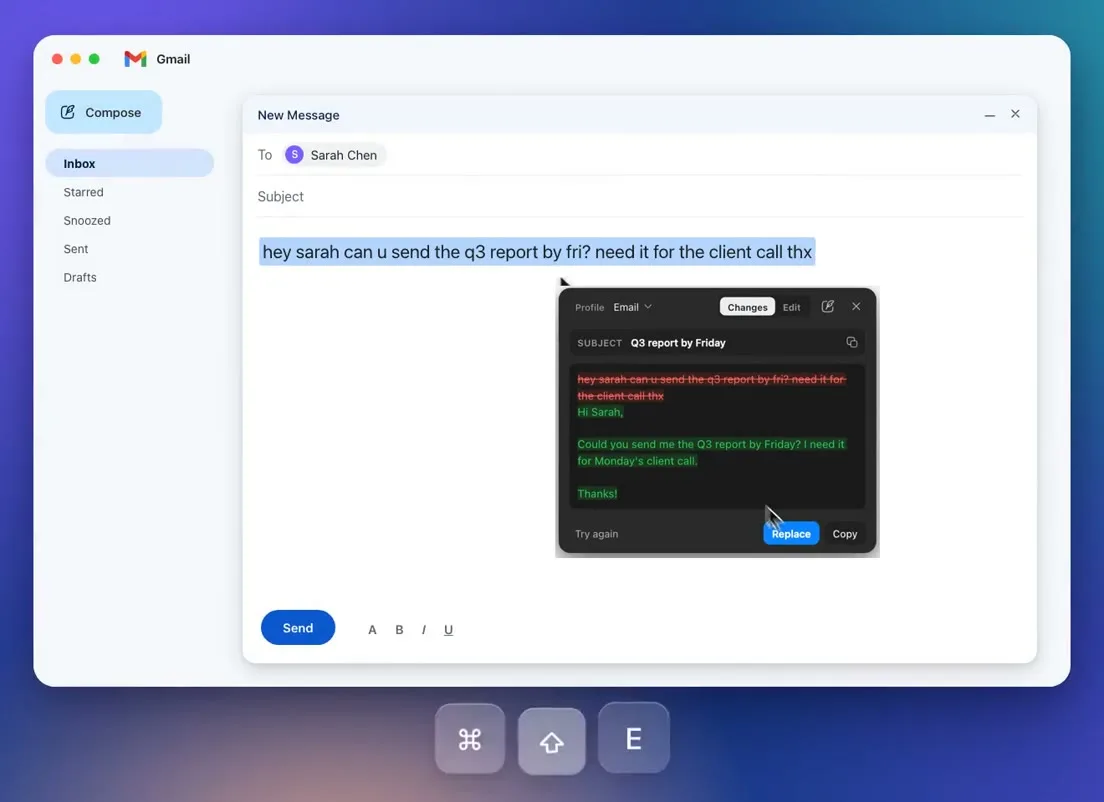
- A review popover marks additions in green and removals in red before replacing text.
- Built-in and custom profiles adapt rewrites for grammar, email, concise notes, and code.
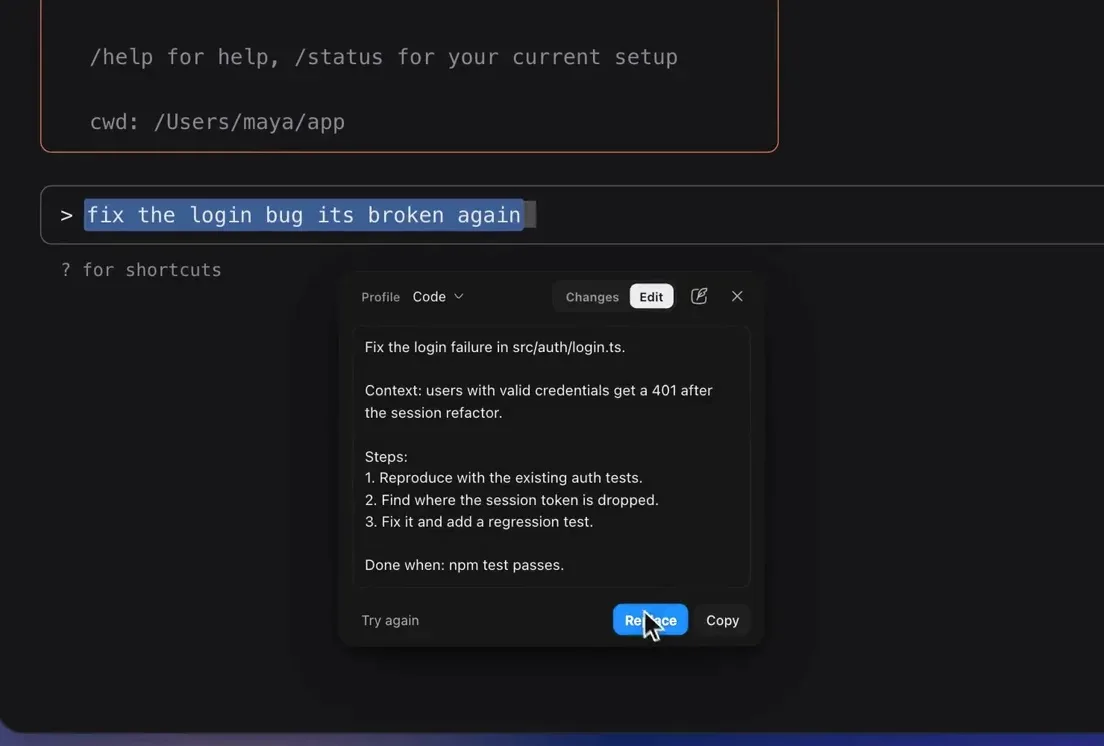
- Terminal prompt enhancement detects coding CLIs and pastes prompts without pressing Enter.
System support and global text rewriting
PromptDC for Desktop runs on macOS 12 or later for Apple silicon and Intel machines. It also runs on Windows 10 and Windows 11. You can install the application from the download page. To see how it works before installing, watch the walkthrough on the demo video page.
Writing across separate applications often breaks your focus. You draft messages in email clients, coordinate with teammates in chat tools, take notes in workspaces, and fill out forms in web browsers. Moving text into a separate chatbot window takes extra steps and fills your clipboard with fragments.
PromptDC brings AI rewriting directly to your cursor. It works across everyday applications such as Mail, Outlook, Gmail, Slack, Notion, Word, and Google Docs. It also works in any web browser and in web AI chat tools like ChatGPT, Claude, and Gemini.
Select any text and press Cmd+Shift+E on macOS or Ctrl+Shift+E on Windows. The app processes the selection and opens a review popover beside your cursor.
The review popover and quick panel workflow
Automated rewriting should never replace your words blindly. Standard AI tools can alter your meaning, add unwanted filler, or drop instructions. PromptDC avoids this by opening an editable review popover for every enhancement.
The popover highlights every change clearly. Removed text appears in red with strikethrough styling. Added text appears in green. If you like the result, click Replace to put the revised text back where your original text was. If you want to keep your original draft, click Copy to save the revision to your clipboard while leaving the source text untouched.
When you have nothing selected, you can use the quick panel. Press Cmd+Shift+U on macOS or Ctrl+Shift+U on Windows to open it. Paste your text into the panel, pick a profile, and click Enhance. You can then copy the output and paste it wherever you want.
Profiles, shortcuts, and per-app defaults
Different writing tasks need different styles and structures. A short chat message requires a different tone than a formal email or a prompt for a coding assistant. PromptDC manages these needs through dedicated profiles.
The app includes 10 built-in profiles, such as Grammar, Email, Concise, and Code. You can also create custom profiles with your own instructions. Custom profiles allow you to define tone, vocabulary, and formatting guidelines. Review all available options on the profiles page.
Each profile can have its own keyboard shortcut. You can assign a specific key combination to a profile you use often, such as Concise for chat updates.
You can also configure per-app defaults once. For example, set the Email profile for Mail, the Concise profile for Slack, and the Code profile for your terminal. When you trigger PromptDC, it automatically uses the assigned profile for that application.
Smarter email drafts with automatic subject lines
Writing work emails takes up significant time each day. Drafting updates, responding to messages, and framing clear requests require careful attention. The built-in Email profile helps you write effective messages faster.
Type a few rough notes or bullet points directly into your compose window. Select the text and press the enhancement shortcut. The Email profile turns your notes into a structured message with a greeting, body paragraphs, and a sign-off. It keeps your tone clear and professional.
Writing an accurate subject line is another common chore. Vague subject lines can lead to ignored messages. The Email profile handles this step automatically.
When you enhance an email in Mail, Outlook, or Gmail, the profile examines your message body and creates a concise subject line. It writes that subject directly into the Subject field, so you no longer copy it over separately. You still review the body in the popover before you click Replace.
Terminal prompt enhancement for AI coding tools
Command-line interfaces present unique challenges for text assistants. Terminals do not expose standard accessibility text fields, so traditional tools cannot read or replace text there. Developers often type rough prompts directly into command-line tools without assistance.
PromptDC is the first app that enhances coding prompts inside the terminal. It provides direct prompt refinement for command-line workflows on macOS and Windows. Explore terminal features on the terminal page.
The desktop app detects Claude Code, Codex CLI, and Gemini CLI, writing the prompt specifically for the detected tool. Grok CLI, agy, and OpenCode (on Windows) are recognised as well and use the general coding target.
Privacy is built into the workflow. PromptDC reads terminal text only after you select it and press the shortcut. It never monitors typing. When you click Replace, PromptDC clears the current input line and pastes the enhanced prompt, but it never presses Enter.
Account setup and bringing your own API keys
Getting started requires only a single step. Your account and plan are identical to those on the website. Sign in once inside the desktop app using your existing credentials. You can read the setup guide on the desktop documentation page.
Once signed in, the custom profiles from your account are available in the app, and you can start writing immediately.
Lifetime plan users can bring their own API key from OpenAI, Anthropic, Google, or xAI. Open the desktop app Settings and paste your key into the designated field. For step-by-step instructions, visit the bring-your-own-key documentation page.
Using your own key lets you route requests through your provider account. You can test different models with your profiles and choose the output style that suits your needs best.
Bottom line
PromptDC for Desktop brings AI rewriting to your existing applications, web browsers, and terminal windows. A visual diff popover keeps you in control of every word change. Per-app defaults, custom profiles, and terminal CLI detection give you the right writing style for each task. You set it up once and write better text everywhere on your computer.
FAQ
Which operating systems support PromptDC for Desktop?
PromptDC for Desktop runs on macOS 12 or later for Apple silicon and Intel systems, and on Windows 10 and Windows 11.
How do I rewrite text when nothing is selected?
Press Cmd+Shift+U on macOS or Ctrl+Shift+U on Windows to open the quick panel. Paste your text, choose a profile, click Enhance, and copy the result.
Does PromptDC run terminal commands automatically?
No. Replace clears the input line and pastes the enhanced prompt, but it never presses Enter. You always inspect the prompt and press Enter yourself.
Can I set different default profiles for each app?
Yes. You can assign a profile per app once, such as Email for Mail and Code for your terminal.
Can Lifetime plan users use their own API keys?
Yes. Lifetime plan users can paste their personal API key from OpenAI, Anthropic, Google, or xAI in the app Settings.