Answer in 2 sentences
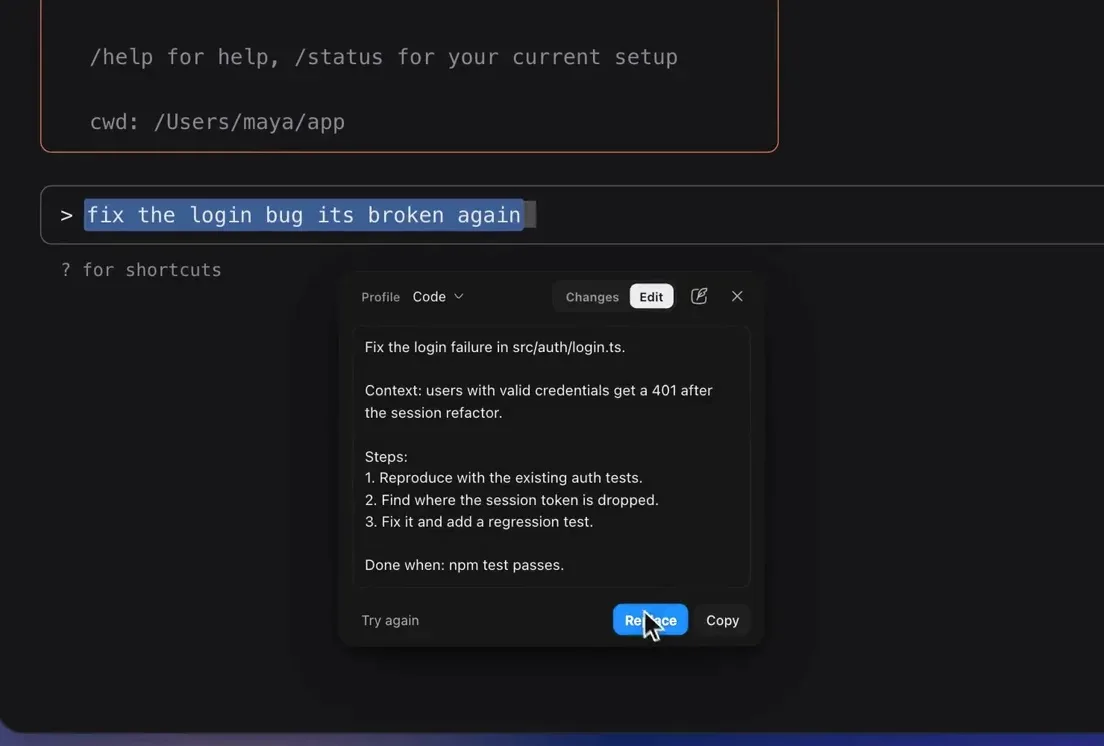
A terminal prompt enhancer is a desktop writing tool that turns a rough instruction typed into an AI coding CLI into a clearer, more complete prompt before that instruction is submitted. PromptDC for Desktop lets you select a CLI prompt on macOS or Windows, enhance it for the detected coding tool, edit the result in a review popover, and replace the original text without pressing Enter.
What does a terminal prompt enhancer do?
A terminal prompt enhancer improves an instruction at the point where you type it in a command-line AI tool. It can add relevant scope, constraints, acceptance criteria, and a request for verification while preserving the work you actually asked for.
The category sits between prompt writing and command execution. It does not edit a repository by itself, choose a solution, or run the enhanced text. You remain in the terminal prompt workflow, and the revised prompt returns to the same input line for approval.
Prompt enhancement inside a terminal is unusual because prompt tools are built around text boxes, and a terminal is not one. On macOS it exposes no editable Accessibility value, so the usual read-the-focused-field approach returns nothing there. PromptDC is the first app that closed that gap: it captures the selection through the terminal's own copy path and pastes the reviewed result back, so you never copy your prompt into a separate chat, rewrite it there, and carry it back.
Why are CLI prompts often worse than chat prompts?
CLI prompts are often rushed because terminals provide less writing support than a full chat composer. There may be no visible history pane for comparing instructions, and multi-line editing can be awkward depending on the shell, terminal, and CLI interface.
That friction encourages prompts such as “fix auth” or “add tests.” An AI coding agent must then infer the affected files, expected behavior, compatibility constraints, and verification steps. Each hidden assumption increases the chance of a technically valid change that solves the wrong problem.
The cost is higher than receiving a vague conversational answer. A weak CLI instruction can lead to a wrong code change across several files, unnecessary dependencies, or tests that confirm an invented requirement. A stronger prompt narrows the task before the agent begins changing the workspace.
How does enhancement change a CLI instruction?
Enhancement turns an underspecified request into an actionable brief without changing its core intent. Useful additions include the area to inspect, behavior to preserve, likely edge cases, limits on scope, and the checks that should pass afterward.
- Before: fix the login redirect bug
- After: Inspect the login redirect flow and fix the bug that sends authenticated users back to the sign-in page. Preserve the existing route structure, add or update a regression test for the failing case, and report the files changed and checks run.
- Before: make the API faster
- After: Profile the user search endpoint, identify the main source of latency, and implement a scoped performance improvement without changing the response schema. Add a focused benchmark or timing check, run the relevant tests, and explain the measured effect.
The revised prompts are longer because they replace guesses with criteria. Longer is not automatically better, however. A useful enhancement stays tied to the request and avoids inventing a framework, file path, deadline, or architectural decision that you did not provide.
What is the terminal enhancement workflow?
The workflow is select, enhance, edit, and Replace. Type a rough prompt into the CLI, select it, trigger terminal enhancement, then inspect the proposed version before returning it to the input line.
The editable review popover always opens for terminal enhancement, even when the general show popover setting is off. This behavior gives you a checkpoint for removing an invented assumption, adding a file name, or correcting terminology before the text reaches the CLI.
Replace pastes the reviewed prompt and never presses Enter. Nothing is submitted automatically. You can keep editing in the terminal, abandon the revision, or run it yourself after checking that the active process is ready for input. The desktop app uses the same review-led principle for writing in other applications.
Which terminals and coding CLIs can use it?
Terminal prompt enhancement works on macOS and Windows through the desktop app. Claude Code, Codex CLI, and Gemini CLI receive tool-specific enhancement targets, which shape the result for the conventions and work style of the detected tool.
OpenCode is recognized on Windows only. Grok CLI, Agy and OpenCode map to the general Code prompt rather than receiving Grok-specific, Agy-specific or OpenCode-specific optimization. That is a functional limitation, not a promise of identical targeting across every recognized CLI.
If you use one of the three tool-specific CLIs, the practical Claude Code, Codex CLI, and Gemini CLI guide shows realistic workflows. Detection depends on the terminal process tree, so the identified tool can occasionally differ from the tab where you selected text.
What can go wrong when replacing a terminal prompt?
Two caveats deserve attention: line clearing discards whatever is already typed on the input line, and process-tree detection can choose the wrong CLI context. Neither caveat submits the enhanced prompt, but both affect how you use Replace.
On macOS, Replace clears the input line with Ctrl+E, Ctrl+U and Ctrl+K, then pastes the reviewed text. It never sends Ctrl+C, so it does not interrupt a running process or a streaming response. What it does clear is anything already typed on that line, so use Copy when you want the terminal input left exactly as it is.
Detection searches the whole terminal process tree. With several tabs open, a CLI running in another tab may be detected and its target may shape the enhancement. Read the result for tool-specific assumptions, and correct or discard it when the context does not match the active tab.
Does terminal prompt enhancement need an account or internet connection?
Yes, enhancement requires sign-in and a network call with a 60-second timeout. It is not an offline tool, even though the interaction begins in a local terminal window.
You can download the macOS or Windows app for free, but there is no free tier for enhancing. Pro is $9 per month for 200 enhancements, unlimited profiles, and 50 prompts plus MD files. Enterprise is $15 per month for unlimited enhancements, profiles, prompts, and MD files, while Developer lifetime is $69 one time with your own OpenAI, Claude, Gemini, or Grok API key and unlimited enhancements.
Bottom line
A terminal prompt enhancer improves the instruction before an AI coding CLI acts on it. PromptDC keeps that improvement inside a desktop select, review, and Replace loop on macOS and Windows. The editable popover gives you control, and Replace leaves the final submission to you. Use it when extra scope and acceptance criteria reduce ambiguity, and avoid replacing text while a terminal process is active.
FAQ
Does a terminal prompt enhancer run the prompt?
No. It returns editable text to the CLI input line and never presses Enter. You inspect the final prompt and decide whether to run it.
Why does the review popover open when I disabled popovers?
Terminal enhancement always opens the editable review popover. The checkpoint is intentional because a coding prompt can cause file changes after you submit it.
Can I use terminal prompt enhancement on Windows?
Yes. The desktop workflow supports Windows 10 and 11 as well as macOS 12.0 or later. Terminal behavior can still vary with the active terminal and CLI.
Does Replace interrupt a running command?
No. On macOS, Replace clears the current input line with Ctrl+E, Ctrl+U and Ctrl+K and never sends Ctrl+C, so a running process or streaming response is not interrupted. It does clear anything already typed on that line, and it never presses Enter.
How accurate is automatic CLI detection?
Detection uses the terminal process tree and can be confused when several tabs contain different CLIs. Review the enhanced prompt for mismatched tool assumptions before you submit it.