Answer in 2 sentences
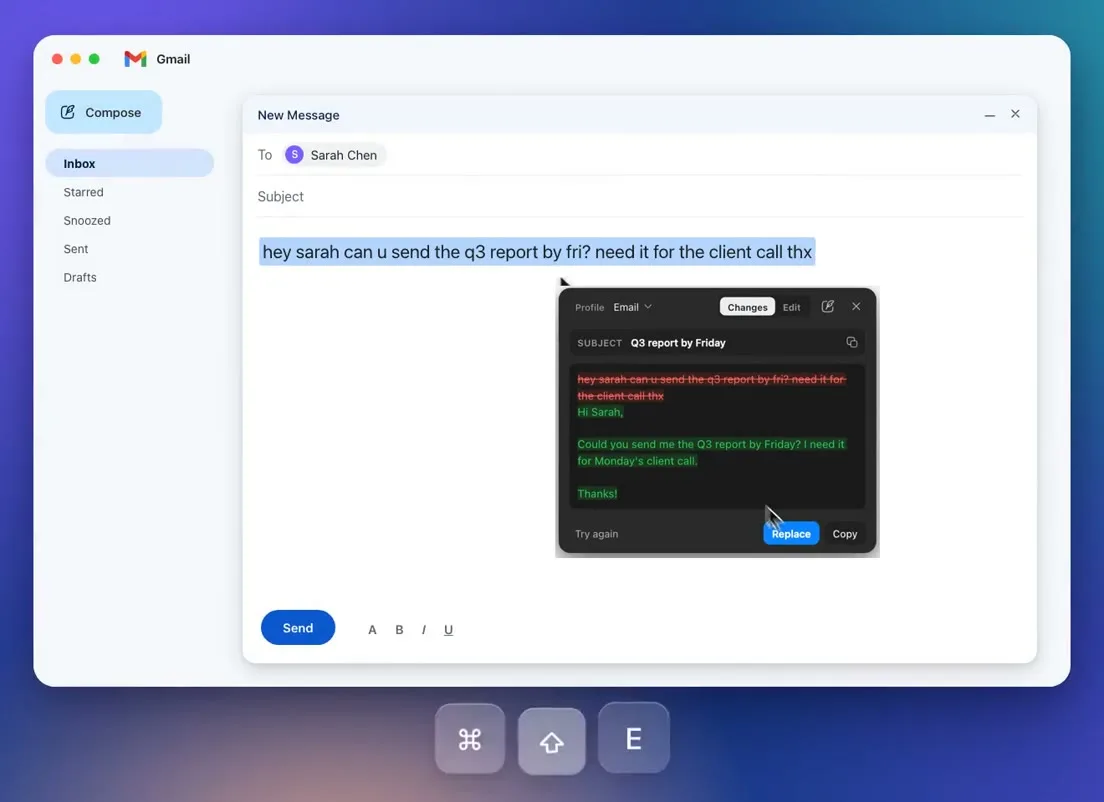
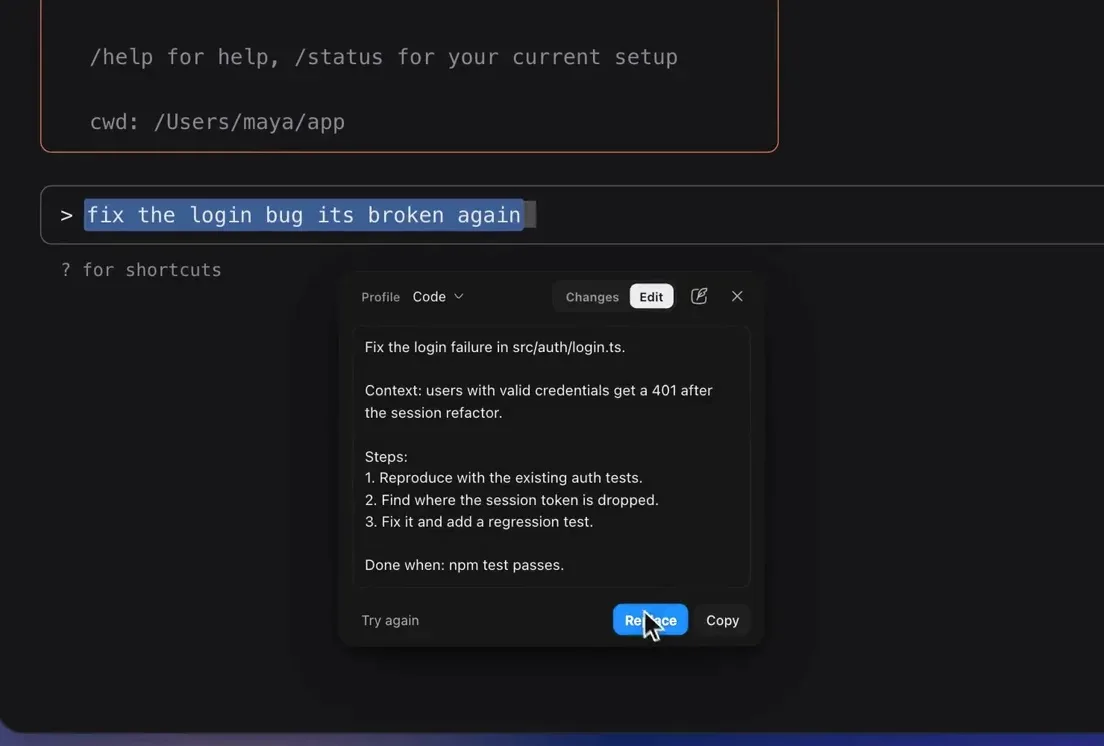
PromptDC for Desktop enhances rough prompts inside terminal coding tools before you execute them. By selecting your text and pressing a shortcut, you can review a tool-aware rewrite tailored for Claude Code or Codex CLI and replace the prompt directly on your terminal input line.
Key takeaways
- Terminal coding agents require clear boundaries, file references, and verification steps to avoid unwanted codebase changes.
- PromptDC for Desktop is the first app that enhances coding prompts inside the terminal on macOS 12 or later and Windows 10 and 11.
- Pressing Cmd+Shift+E on macOS or Ctrl+Shift+E on Windows opens an editable review popover before any text touches your command line.
- PromptDC detects running tools through the process tree and applies tailored targets for Claude Code and Codex CLI.
- Replace clears the active input line and pastes the enhanced prompt without pressing Enter.
Why CLI prompts are usually under-specified
Developers spend hours inside command line interfaces. In a fast terminal session, prompt input is often rushed. You quickly type short instructions like "fix auth token handling" or "add tests for user service."
These brief instructions create ambiguity for an autonomous coding agent. When an agent receives a short prompt, it must deduce your intentions. It might inspect unrelated files, introduce unneeded dependencies, or refactor working code instead of fixing the specific bug.
In a coding CLI, an ambiguous prompt can trigger unintended file edits and confusing git diffs. Reverting accidental changes disrupts your workflow and wastes valuable time.
Standard command lines lack rich text editing and smooth multi-line navigation. Because writing detailed instructions by hand in a terminal requires friction, developers frequently settle for minimal prompts.
Enhancing your prompt before submission bridges this gap. You enter a rough thought into your terminal, then convert it into an actionable technical specification. You can explore how terminal prompt enhancement fits into your daily routine.
The step-by-step terminal workflow
The workflow consists of four straightforward stages: select, shortcut, review, and Replace.
First, type your rough instruction into your terminal prompt line. Select the text using your mouse or keyboard. PromptDC reads terminal text only after you select it and press the shortcut. It never monitors background typing.
Second, press the shortcut: Cmd+Shift+E on macOS or Ctrl+Shift+E on Windows.
Third, inspect the rewritten prompt in the review window. Terminal enhancement always opens an editable review popover, even if popovers are turned off elsewhere. This required checkpoint exists because a coding prompt can modify files once submitted. You can edit the text directly inside the popover to add file paths or refine acceptance criteria.
Fourth, send the revised text back to your terminal. Clicking Replace instructs PromptDC to clear the current input line and paste the enhanced prompt. It never presses Enter. You decide when the command runs. If you prefer to keep your original prompt untouched on the input line, click Copy instead.
This workflow operates in standalone terminal windows and in terminal panes embedded in other apps.
What changes between Claude Code and Codex CLI
When you trigger enhancement with the Code profile active, PromptDC identifies the running CLI. It does not read the other tool's system prompt. It sends a tool identifier, and the enhancement target is chosen for that tool.
PromptDC provides specialized targets for Claude Code, Codex CLI, and Gemini CLI. Other tools like Grok CLI, agy, and OpenCode (supported on Windows) are recognized and use the generic coding target.
Because Claude Code and Codex CLI operate differently, PromptDC adapts the enhancement target for each tool:
In Claude Code terminal workflows, the enhanced prompt spells out boundaries for an agent that reads files and runs commands on its own: the files to touch, the files to leave alone, the commands that verify the change, and the acceptance criteria.
In Codex CLI terminal workflows, the enhanced prompt is phrased for Codex: the goal, the constraints on the patch, the expected inputs and outputs, and the tests that prove it works.
Detection operates by inspecting the terminal process tree. If you work with several tabs open containing different CLIs, the check might identify a CLI running in an alternate tab. Confirm that the generated prompt matches the CLI in your active tab before clicking Replace.
Realistic before and after prompt examples
Viewing concrete examples highlights how structured enhancement clarifies developer intent.
Claude Code prompt enhancement
In Claude Code, a developer might type a terse request to resolve an authentication problem:
``text fix session expiry redirect loop in auth middleware ``
PromptDC transforms that brief sentence into a structured prompt designed for Claude Code:
```text Goal: Fix the session expiration redirect loop that occurs when an expired token is sent during an active request.
Constraints:
- Preserve existing JWT validation logic and cookie parsing rules.
- Do not add new external authentication packages.
- Ensure route middleware errors return standard error structures.
Files to touch:
- src/middleware/auth.ts
- src/utils/session.ts
- tests/middleware/auth.test.ts
Done criteria:
- Expired sessions redirect cleanly to /login with a 302 status code.
- Active valid sessions continue without extra database lookups.
- Automated tests in tests/middleware/auth.test.ts pass cleanly.
```
Codex CLI prompt enhancement
In Codex CLI, a developer might type a short prompt to implement rate limiting:
``text add redis rate limiting to api routes ``
The enhanced result provides the explicit constraints and targets that Codex CLI needs to produce accurate patches:
```text Goal: Implement a sliding-window rate limiter using Redis across public API endpoints.
Constraints:
- Use the shared ioredis connection pool; do not instantiate new client instances.
- Attach standard HTTP headers: Retry-After, X-RateLimit-Limit, and X-RateLimit-Remaining.
- Fail open with an error log if Redis becomes unreachable.
Files to touch:
- src/lib/rate-limiter.ts
- src/routes/api/v1/router.ts
- tests/unit/rate-limiter.test.ts
Done criteria:
- Requests exceeding 100 calls per minute per IP return an HTTP 429 status code.
- Redis keys use the rl:ip: prefix and expire after 60 seconds.
- Unit tests verify nominal rate limiting and graceful failure when Redis is offline.
```
Both examples turn a vague idea into a verifiable task specification with clear boundaries.
Using the Code profile and per-app defaults
PromptDC organizes its capabilities through profiles. For command line tasks, you will rely on the Code profile.
The Code profile provides flexible formatting settings. You can set the output format to Regular, JSON, XML, or YAML. You can also select Simple or Structured output. Simple output keeps the prompt short. Structured output organizes it into sections such as goal, constraints and done criteria.
To simplify your routine, PromptDC supports per-app defaults. You can assign the Code profile to your terminal application once. PromptDC automatically activates the Code profile whenever that terminal window has focus. You can explore other writing profiles to see how profile customization works across desktop applications.
Windows notes and terminal compatibility
PromptDC for Desktop runs on macOS 12 or later and Windows 10 and 11. You can download the desktop app to install it on either operating system.
On Windows, the keyboard shortcut is Ctrl+Shift+E. The app works in standalone Windows terminals and in terminal panes embedded in other apps. On Windows, OpenCode is recognised alongside Claude Code and Codex CLI.
On macOS, Replace clears the active input line with Ctrl+E, Ctrl+U and Ctrl+K before pasting. It never sends Ctrl+C, so a running process is not interrupted. On Windows, Replace also clears the input line and pastes the enhanced prompt without pressing Enter.
Bottom line
Enhancing instructions inside your terminal prevents coding agents from making costly assumptions. Instead of submitting brief phrases and hoping for correct edits, you can turn rough thoughts into precise, tool-aware prompts. With automatic detection for Claude Code and Codex CLI, structured formats, and a safe review popover, PromptDC brings clarity to command line AI coding.
FAQ
Does PromptDC run the prompt automatically in the terminal?
No. PromptDC never presses Enter. Clicking Replace clears the current input line and pastes the enhanced text into your terminal buffer. You review the final text and decide when to run it.
Why does the review popover appear even when popovers are disabled?
Terminal enhancement always opens an editable review popover. Because an AI coding prompt can modify files and repository state once submitted, the review popover provides a required checkpoint to inspect and adjust the text.
Does PromptDC read another tool's internal system prompt?
No. PromptDC does not read the internal system prompts of other tools. When it detects an active CLI like Claude Code or Codex CLI, it sends a tool identifier to tailor the enhancement target.
Does PromptDC monitor everything typed in the terminal?
No. PromptDC never monitors background typing. It only reads terminal text when you select an instruction and press Cmd+Shift+E on macOS or Ctrl+Shift+E on Windows.
What happens if multiple terminal tabs are open?
Detection relies on the terminal process tree. If you run multiple CLIs across different tabs, the process tree scan might identify a CLI running in another tab. Check the review popover before clicking Replace to confirm the generated prompt matches the active CLI.